Engineers: 20–40% RDS savings with AWS tactics mapped to billing meters
Right-sizing, migrating gp2 volumes to gp3, stopping non-production instances on a schedule, and buying Reserved Instances or Database Savings Plans for steady-state workloads are the four moves that cut Amazon RDS bills fastest. Run them in that order and you should see a 20% to 40% reduction on a first pass, validated through Compute Optimizer and Cost Explorer before you touch production. Everything below shows you how to verify each move instead of guessing.
TL;DR:
- Most RDS cost reductions come from right-sizing instances, migrating to Graviton, and switching to gp3 volumes, with potential savings of 20% to 40%.
- Billing is composed of multiple meters, including compute, storage, IOPS, Multi-AZ, backups, and data transfer, requiring detailed analysis.
- Stop non-production databases outside business hours and review Multi-AZ deployments to significantly cut costs without risking performance.
- Use AWS tools like Compute Optimizer, Trusted Advisor, and Cost Explorer to validate optimization moves with data, not guesswork.
- Long-term backup and snapshot costs often quietly grow due to leftover manual snapshots and cross-region copies, needing regular cleanup.
Table of Contents
- What is the RDS cost model, and where does the money actually go?
- Which levers cut RDS spend fastest, and in what order?
- Which AWS tools actually validate these optimizations?
- Why are your backup and snapshot costs quietly climbing?
- How should you choose between Reserved Instances and Database Savings Plans?
- How do you run a prioritized RDS audit instead of guessing?
- What should you run this week, this month, and this quarter?
- What do cross-AZ and VPC data transfer charges add to your RDS bill?
- Are Performance Insights and Enhanced Monitoring worth their cost?
- How does SQL Server and Oracle licensing change your optimization strategy?
- When does Aurora Serverless beat a provisioned instance on cost?
- An engineer’s take on where the real audit surprises hide
- Get a pay-on-savings RDS cost and security review
- Sources
What is the RDS cost model, and where does the money actually go?
RDS pricing isn’t one number. It’s a stack of independent meters, and most teams only ever look at the one labeled “instance hours.” That’s the mistake.
Amazon RDS pricing bills across compute, storage, IOPS, Multi-AZ, backups, data transfer, and add-ons separately, and each one can spike independently of the others. A db.r6g.xlarge running Multi-AZ, provisioned IOPS storage, and a 30-day backup window can bill three to five times its headline hourly rate once every meter is counted, according to a detailed breakdown of RDS charges from SelfHost.
Here’s what shows up on a typical invoice for a production database:
- Compute: billed per second, driven by instance class and family (Graviton vs. Intel/AMD).
- Storage: billed per GB-month, whether you’re on gp3, gp2, or io2.
- Provisioned IOPS: billed separately from storage capacity, and easy to overprovision.
- Multi-AZ: doubles both compute and storage cost by running a synchronous standby.
- Backup storage: free up to 100% of your provisioned database size, then billed per GB beyond that.
- Data transfer: charged for cross-AZ and cross-region traffic tied to replication and application calls.
- Add-ons: RDS Proxy, Performance Insights retention, and Extended Support licensing.
Pro Tip: Pull your last three months of Cost Explorer data grouped by usage type, not by instance. That view exposes IOPS and backup line items hiding inside what looks like a flat “database” cost.
Chasing instance-hour discounts while ignoring that meter is optimizing the wrong number.
Which levers cut RDS spend fastest, and in what order?
Not every optimization move carries the same payoff or the same risk. Work through these in sequence, validating each one with metrics before you commit to it in production.
- Right-size before anything else. Pull 14 to 32 days of CloudWatch CPU and memory data. If sustained CPU utilization sits below 35% over that window, you can typically drop two instance classes; between 35% and 60%, drop one class. Always check p99 latency and working-set size against freeable memory first, because a class that looks oversized on CPU alone can still cause cache-miss regressions on a database with a large working set.
- Migrate to Graviton where the engine supports it. Compute Optimizer surfaces Graviton alternatives directly in its recommendations, comparing cost and performance against your current instance family. Graviton instances (the M6g, R6g, and newer generations) typically run meaningfully cheaper per vCPU hour than comparable Intel or AMD classes, and most modern engine versions on RDS and Aurora support the switch with a maintenance-window instance modification rather than a migration project.
- Move gp2 volumes over roughly 100 GB to gp3. gp2 ties IOPS to volume size, so you end up paying for capacity you don’t need just to get the IOPS you do need. gp3 decouples the two, letting you provision IOPS and throughput independently of storage size, which is why volumes above that threshold see immediate cost reductions after migration. For volumes with 40% or more free space, a snapshot-and-restore into a smaller gp3 volume usually pays back its migration effort within a few months, though you should schedule the cutover window and confirm the target IOPS baseline before restoring.
- Schedule non-production instances to stop outside business hours. This is the lowest-risk, fastest-payoff move on the list because it eliminates compute hours without touching a live workload. Automated scheduling, whether through AWS Instance Scheduler or a Lambda function triggered by EventBridge, can cut related compute costs by up to 70% for dev, staging, and QA databases that sit idle overnight and on weekends.
- Audit every Multi-AZ deployment. Multi-AZ duplicates compute and storage cost for synchronous failover protection. That’s the right tradeoff for a production primary with strict recovery-time requirements, but it’s dead weight on staging, QA, or any environment without a real SLA. If you need read scaling rather than failover protection, Aurora read replicas or Single-AZ read replicas are usually the cheaper path. Confirm your disaster-recovery and SLA requirements before changing topology on anything customer-facing.
Pro Tip: Run right-sizing and Graviton migration as a pilot on one non-critical instance first. A partner like AceRDP can host a performance-sensitive test environment if you want to benchmark Graviton throughput before touching a production fleet.
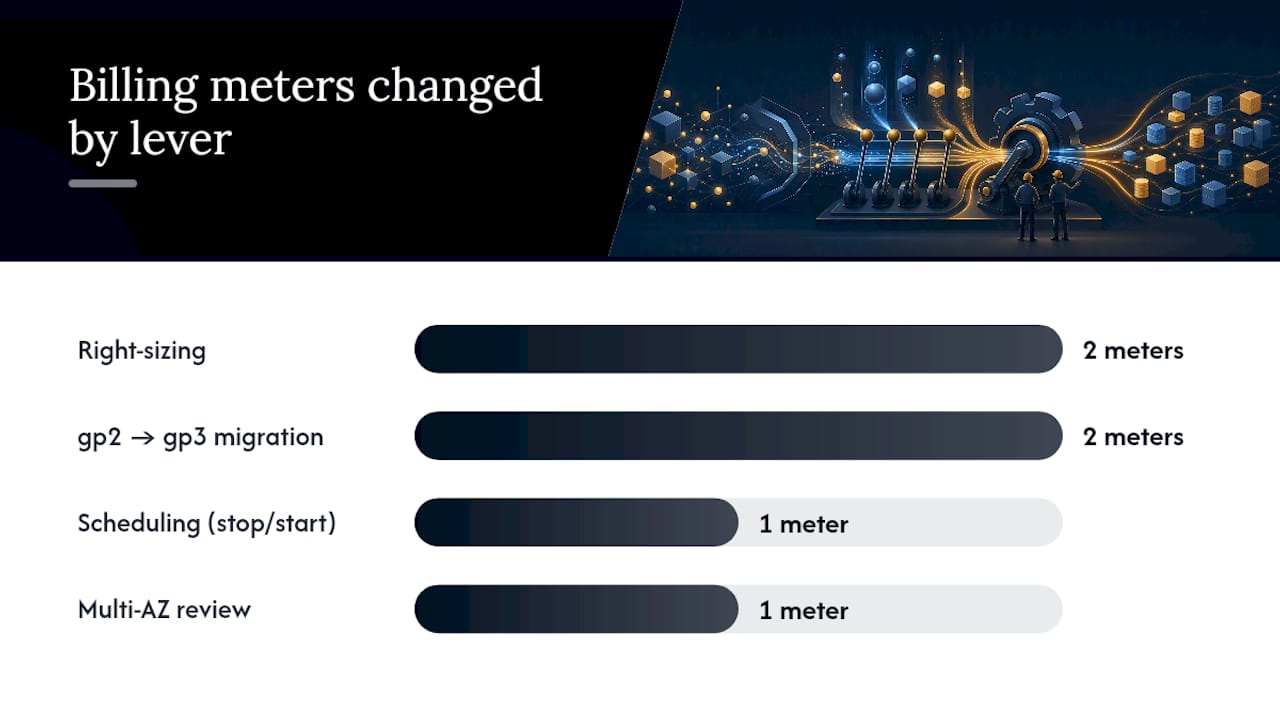
The order matters. Right-sizing and gp3 migration change what you’re paying per hour and per gigabyte. Scheduling changes how many hours you’re billed for at all. Multi-AZ review changes whether you’re paying double in the first place. Do them out of order and you risk optimizing a class or volume you’re about to shut down anyway.
Which AWS tools actually validate these optimizations?
Guessing at instance sizes is how teams end up with performance incidents. AWS gives you three tools that turn “this instance looks big” into a defensible, data-backed decision.
- AWS Compute Optimizer analyzes CloudWatch metrics across your RDS and Aurora fleet and returns specific recommendations: which instances are idle, which are candidates for a smaller class, and which could move to Graviton, each with an estimated monthly savings figure and a risk assessment.
- AWS Trusted Advisor flags idle and underutilized RDS instances and checks Reserved Instance coverage gaps, giving you a second, independent read on the same fleet.
- Cost Explorer lets you filter by usage type and tag to separate steady-state workloads (good RI candidates) from bursty or seasonal ones (better suited to on-demand or Savings Plans).
- CloudWatch metrics are the ground truth behind every decision: track CPUUtilization, FreeableMemory, ReadIOPS/WriteIOPS, and DatabaseConnections over a 14 to 32-day window to smooth out weekly cycles before you act.
That combination means the instance is oversized on both dimensions at once, and it’s usually a safe two-class downgrade rather than a one-class step.
Why are your backup and snapshot costs quietly climbing?
Backup storage is free, but only up to a limit, and that limit is the part most teams forget. Anything you retain beyond that, whether through longer retention windows or accumulated manual snapshots, gets billed per GB-month.
Manual snapshots are the usual culprit. Nobody deletes them, cross-region copies pile up after disaster-recovery tests, and six months later you’re paying storage costs on snapshots nobody remembers creating. Add-on services layered on top, like RDS Proxy or Database Insights, can push per-instance monthly costs up by $25 to $700 depending on configuration.
- Query manual snapshots with the AWS CLI (
aws rds describe-db-snapshots --snapshot-type manual) and sort by creation date to find anything older than your retention policy. - Set automated backup retention to 7 to 14 days for most workloads; only extend it for databases with a documented compliance requirement.
- Export snapshots you need to keep long-term to Amazon S3 and apply lifecycle transitions to cheaper storage classes instead of paying RDS snapshot rates indefinitely.
- Audit cross-region snapshot copies specifically. They’re easy to create during a DR test and easy to forget afterward.
Pro Tip: Tag every manual snapshot with an owner and an expiration date at creation time. It takes ten seconds and it’s the difference between a five-minute cleanup and a two-hour archaeology project a year from now.
How should you choose between Reserved Instances and Database Savings Plans?
Once you’ve right-sized and scheduled everything, the remaining steady-state workload deserves a commitment discount. The question is which kind.
Reserved Instances give you the deepest discount, but only for the exact instance family, region, and engine you commit to. Database Savings Plans trade some discount depth for flexibility, since the commitment applies across instance families and services rather than to one specific configuration. If your fleet composition is stable and unlikely to change, RIs usually win. If you’re mid-migration, testing Graviton, or expect your instance mix to shift over the next year, Savings Plans are the safer bet.
A sensible coverage target for steady-state RDS usage is 65% to 80% of your baseline compute spend, leaving room for burst capacity and seasonal variation to run on-demand.
- Calculate your baseline $/hour by averaging steady-state usage over the trailing 90 days, excluding known spikes.
- Layer RIs under a Savings Plan only if you’re confident in a specific instance family staying fixed for the commitment term.
- Track utilization monthly through Cost Explorer’s RI/Savings Plan coverage report. Utilization below 90% means you’ve overcommitted.
- Reassess coverage every quarter, not annually. Instance mixes shift faster than most finance calendars expect.
Overcommitting is the risk nobody talks about. A one-year or three-year commitment on a fleet you’re about to right-size locks in savings on the wrong baseline.
How do you run a prioritized RDS audit instead of guessing?
A useful audit follows a fixed sequence, not a scattershot review. That sequence commonly drives more than 25% in first-pass savings.
Score each candidate on two axes: expected monthly savings and implementation risk (low for scheduling and snapshot cleanup, higher for storage-type changes on live production data).
- List every instance, its current monthly cost, and its flag reason.
- Estimate savings per item: a gp2-to-gp3 migration on a 500 GB volume, a stop-start schedule cutting 100 compute hours a week, a one-class right-size on an oversized instance.
- Rank by savings-to-risk ratio, not by savings alone.
| Action | Typical savings driver | Risk level |
|---|---|---|
| Stop non-prod nights/weekends | Up to 70% of related compute hours | Low |
| gp2 to gp3 migration | Immediate GB-month rate reduction | Low to medium |
| One-class right-size | 30% of instance cost | Medium |
| Remove non-prod Multi-AZ | 50% of compute and storage on that instance | Low |
This is exactly the sequence Cost Beacon runs during a managed audit, combining AI-driven analysis of your billing data with engineers who validate each recommendation against your actual workload before it ships as a prioritized action list.
What should you run this week, this month, and this quarter?
Turn the audit into a cadence instead of a one-time project.
- Week 1: Tag every RDS instance by environment and owner, run Compute Optimizer across the fleet, and schedule stop/start automation for every non-production database.
- Month 1: Execute gp2-to-gp3 migrations on flagged volumes, clean up manual snapshots older than your retention policy, and purchase your first round of RI or Savings Plan coverage based on the 90-day baseline.
- Quarterly: Review RI/Savings Plan utilization, pilot a Graviton migration on one instance family, and hold a short FinOps review with engineering and finance to reset coverage targets.
Pro Tip: Assign one owner per environment tier for the weekly checks. Optimization plans that rely on “whoever notices” instead of a named owner stall out by month two.
What do cross-AZ and VPC data transfer charges add to your RDS bill?
Data transfer is the meter engineers notice last and regret ignoring longest. Traffic between an application in one Availability Zone and an RDS instance in another gets billed per GB, and it adds up fast in any architecture where compute and database don’t share placement.
The common trap is a Multi-AZ standby replicating across zones combined with application servers spread across multiple AZs for their own availability reasons. Every write to the primary, every synchronous replication to the standby, and every read from an app instance in a different zone than the database, all cross a billing boundary. Read replicas used for scaling compound this further if they sit in different AZs or, worse, different VPCs connected through peering or a transit gateway, since inter-VPC traffic carries its own transfer charges on top of the cross-AZ rate.
The fix isn’t avoiding Multi-AZ or replicas. It’s placement awareness. Keep application tiers colocated with their primary database AZ where latency and cost both benefit, and route read traffic to replicas in the same AZ as the requesting service when your architecture allows it. For VPC-to-VPC traffic, check whether a VPC endpoint or PrivateLink connection reduces the transfer path compared to routing through a transit gateway or public endpoint. None of this shows up as a dramatic line item on a small database, but on a fleet moving terabytes of replication traffic daily, cross-AZ and cross-VPC transfer can rival the storage bill.
Are Performance Insights and Enhanced Monitoring worth their cost?
Both tools cost money beyond a certain threshold, and both are frequently left running long after the diagnostic reason for turning them on has disappeared.
Performance Insights includes seven days of free retention on every RDS instance. Beyond that window, extended retention (up to two years) is billed per vCPU per month, and it’s easy to forget you extended it during a performance investigation six months ago. If nobody’s actively querying that historical data, you’re paying for a retention window with no reader.
Enhanced Monitoring works differently: it streams OS-level metrics to CloudWatch Logs at intervals as granular as one second, and that granularity carries a real cost in CloudWatch Logs ingestion and storage, particularly across a large fleet. A one-second interval makes sense while you’re actively debugging a CPU or I/O issue. It rarely makes sense as a permanent default across every instance in your account.
The practical move is treating both as diagnostic tools, not baseline configuration. Turn Enhanced Monitoring’s interval down to 60 seconds (or off) once an investigation closes, and audit which instances still have extended Performance Insights retention enabled without an active use case. On a fleet of even a few dozen instances, trimming both back to their default, cost-conscious settings is often a five-figure annual difference that never shows up on a right-sizing report because it’s not a compute or storage line item. It’s monitoring overhead billed on top of them.
How does SQL Server and Oracle licensing change your optimization strategy?
Licensing changes the math on almost every lever above. A right-sizing decision on an open-source engine like PostgreSQL or MySQL is purely an instance-cost calculation. The same decision on SQL Server or Oracle carries a licensing cost that scales with vCPU count, which means the licensing savings from downsizing can outweigh the compute savings.
RDS offers two licensing models for SQL Server and Oracle: License Included, where AWS bundles the licensing cost into the hourly instance rate, and Bring Your Own License (BYOL), where you apply an existing license you already own. License Included is simpler and usually the better default for smaller deployments, but BYOL can be significantly cheaper if you already hold Software Assurance or an Oracle license with the right terms, since you’re only paying for infrastructure on top of a license you’ve already sunk cost into.
Instance-class changes on these engines deserve extra scrutiny because licensing is typically priced per vCPU, not per instance. Dropping from a 16-vCPU instance to an 8-vCPU instance doesn’t just cut your compute bill. It roughly halves your licensing bill too, which is why right-sizing pays off faster on licensed engines than on open-source ones. The flip side is Multi-AZ: a licensed standby instance often requires its own licensing coverage depending on your agreement, so confirm licensing terms before assuming Multi-AZ costs simply double like the infrastructure does. If your organization is running Oracle or SQL Server at meaningful scale, a migration evaluation toward an open-source engine on Aurora is worth modeling purely on licensing avoidance, independent of any infrastructure savings.

When does Aurora Serverless beat a provisioned instance on cost?
Aurora Serverless v2 scales compute capacity up and down automatically based on load, billed per Aurora Capacity Unit (ACU) per second rather than a fixed hourly instance rate. That model wins clearly for workloads with unpredictable or spiky traffic: a development database that sees load for a few hours a day, a reporting workload that spikes weekly, or a new application where you don’t yet know its steady-state traffic pattern.
It loses just as clearly for a database running at a consistent, predictable load around the clock. A provisioned instance covered by a Reserved Instance or Savings Plan will almost always beat Serverless on cost for that kind of steady-state workload, because you’re paying a committed discount rate instead of the on-demand per-ACU rate implicit in Serverless pricing.
The decision point is variability, not size. Look at your CloudWatch utilization graph over a full week. If it’s a flat line with minor noise, provision it and buy commitment coverage. If it’s a workload with real peaks and long idle troughs, Serverless removes the choice between overprovisioning for the peak or risking performance during it. For I/O-heavy Aurora workloads specifically, check whether I/O charges exceed roughly 25% of total Aurora spend before committing to a provisioned model. Above that threshold, Aurora I/O-Optimized often makes more sense than either standard provisioned or Serverless, since it trades per-request I/O charges for a flat, higher compute and storage rate that’s easier to forecast.
An engineer’s take on where the real audit surprises hide
Every enterprise RDS audit turns up the same pattern: teams find right-sizing wins fast, but the bigger money is usually in forgotten Multi-AZ on non-production and snapshot sprawl nobody owns.
The real risk isn’t picking the wrong lever. It’s changing storage type or instance class on a live database without validating p99 latency first. Run the prioritized checklist, not instinct.
— Aaditya Parashar
Get a pay-on-savings RDS cost and security review
You can run every lever in this guide yourself, and many engineering teams do exactly that with a weekend and a Cost Explorer login. But validating right-sizing thresholds, cross-referencing Multi-AZ necessity against real SLA requirements, and catching the licensing and snapshot leaks that don’t show up on a standard dashboard takes hands-on engineering time most teams don’t have to spare.
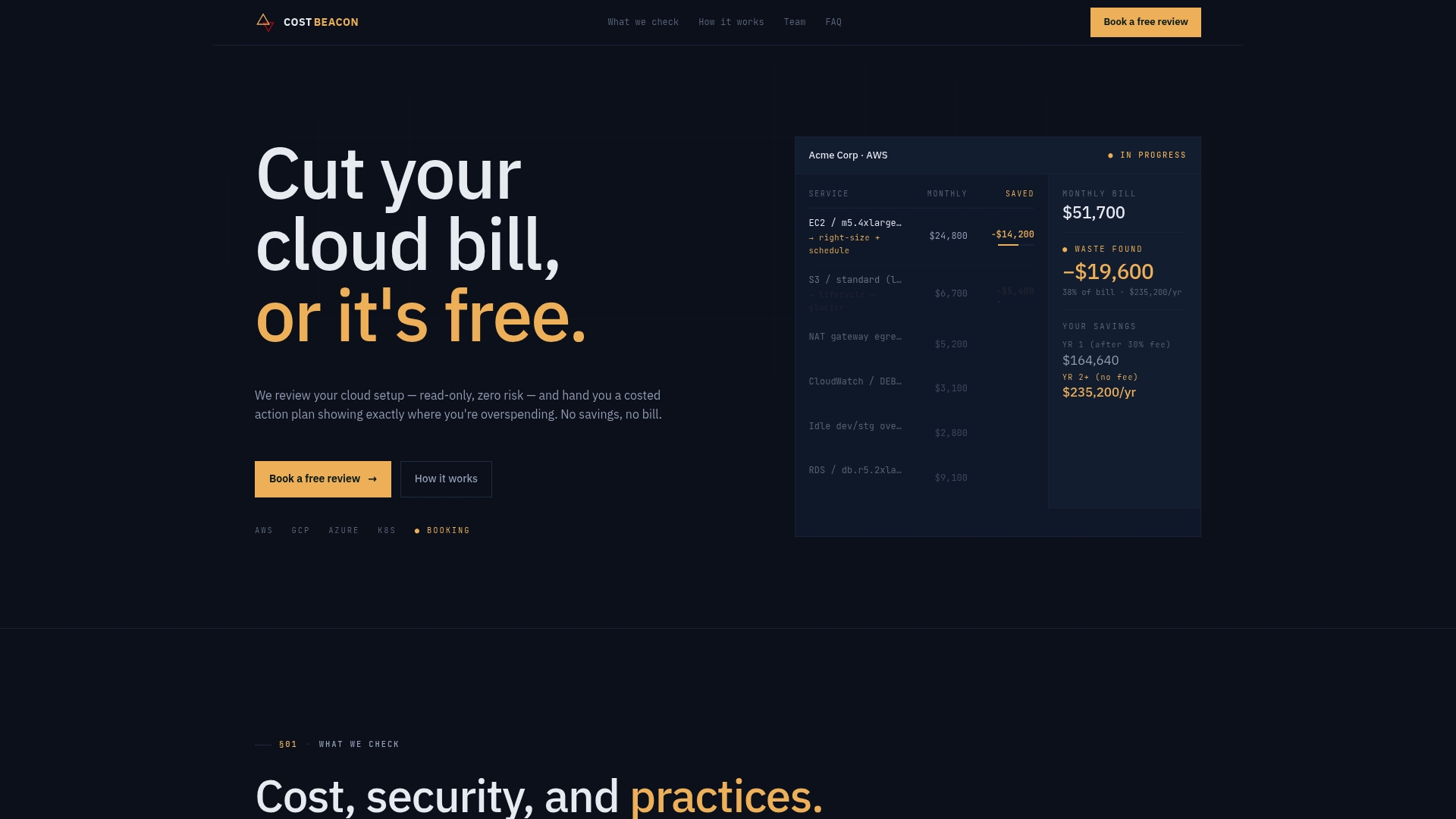
Cost Beacon runs that audit for you, combining AI-driven analysis of your AWS billing data with engineers who validate every recommendation against your actual workload before it becomes a prioritized action plan with savings estimated per line item. You only pay a fee based on savings actually realized. There’s no upfront cost and no retainer, so if the audit doesn’t find real reductions, you owe nothing. If your RDS bill is climbing and you’d rather have engineers confirm the math than guess at it, start a cloud cost and security review with Cost Beacon.
Sources
Aaditya works on cloud cost and platform engineering at Cost Beacon, mostly on AWS and Kubernetes estates that grew faster than anyone planned for.
 Cost Beacon